

About Coze
Coze (扣子) is a no-code AI application development platform by ByteDance. It lets anyone — regardless of coding experience — rapidly build chatbots, AI agents, and plugins, then deploy them across social and messaging platforms. The SoMark plugin is available in the Coze plugin store and brings powerful document parsing capabilities to your agents and workflows.Adding SoMark to an Agent
1
Create an agent
Go to your workspace, click Project Development → + Project (top right) → Create Agent. 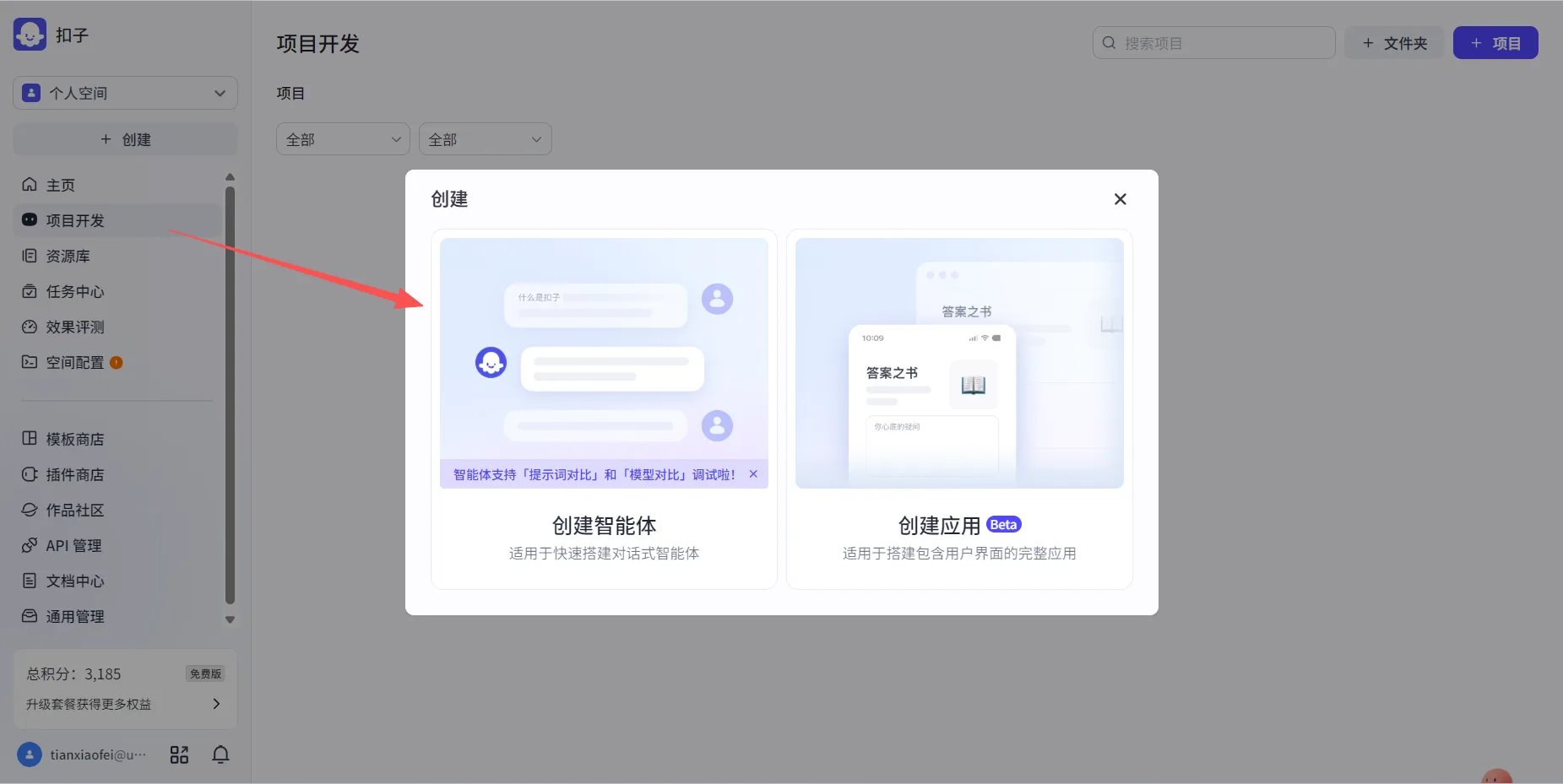
2
Add the SoMark plugin
In the agent editor, locate the Skills section and click to add a plugin.  Search for somark, then find
and add the somark_doc_parse plugin.
Search for somark, then find
and add the somark_doc_parse plugin. 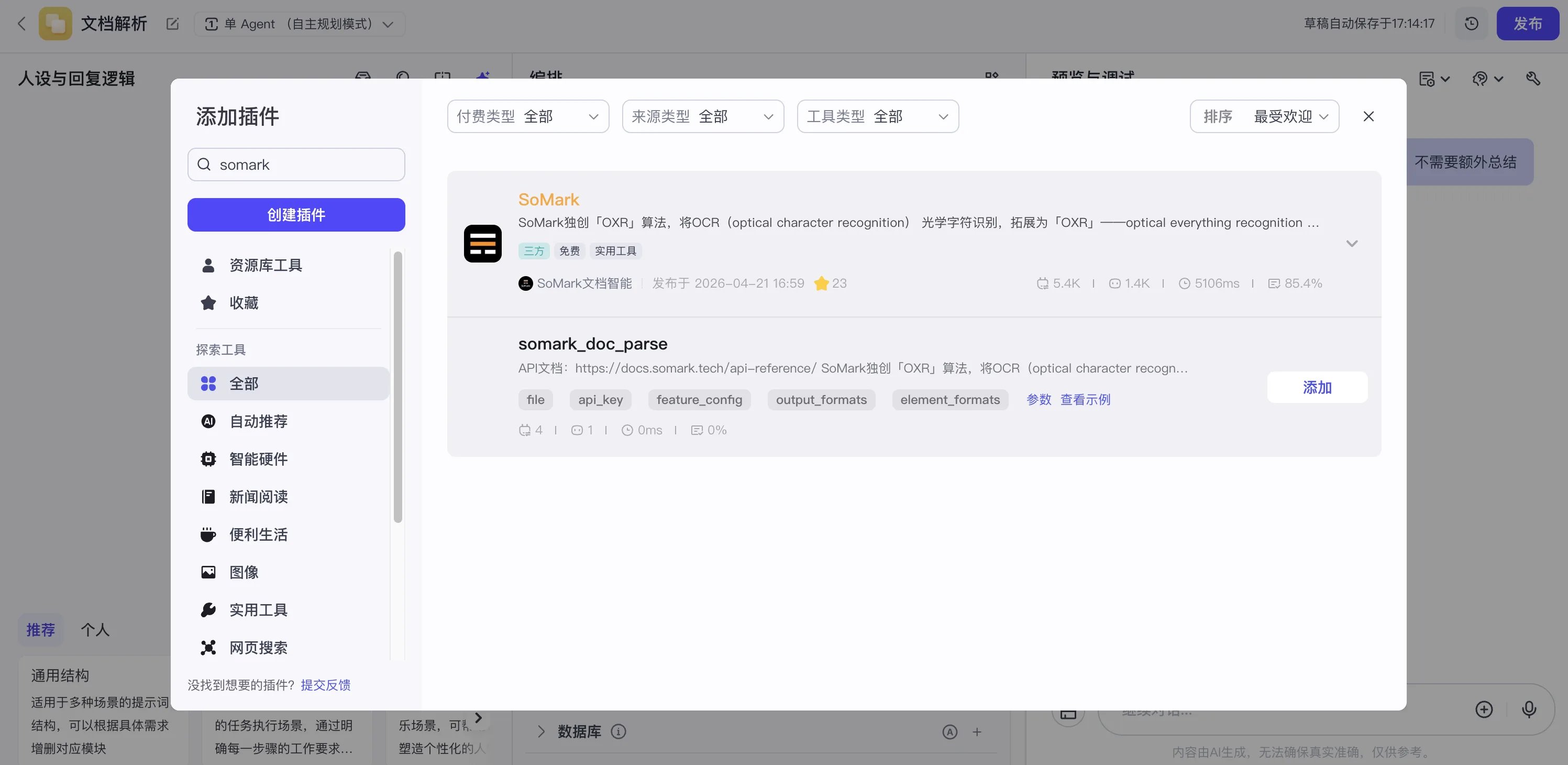
Search for somark, then find
and add the somark_doc_parse plugin. 3
Configure the API key
In the plugin parameter editor, enter your SoMark API key. After entering the API key, toggle the switch on the right to enable it by default. This ensures every
request automatically uses the configured API key without requiring users to enter it manually.
After entering the API key, toggle the switch on the right to enable it by default. This ensures every
request automatically uses the configured API key without requiring users to enter it manually.
No API key yet? Go to the SoMark API Studio to get your API key.
After entering the API key, toggle the switch on the right to enable it by default. This ensures every
request automatically uses the configured API key without requiring users to enter it manually.4
Configure other parameters
In addition to the API key, you can configure other optional parameters based on your needs, such as Output formats, Image format, Formula format, Element
structure format, and Table format. You can also use 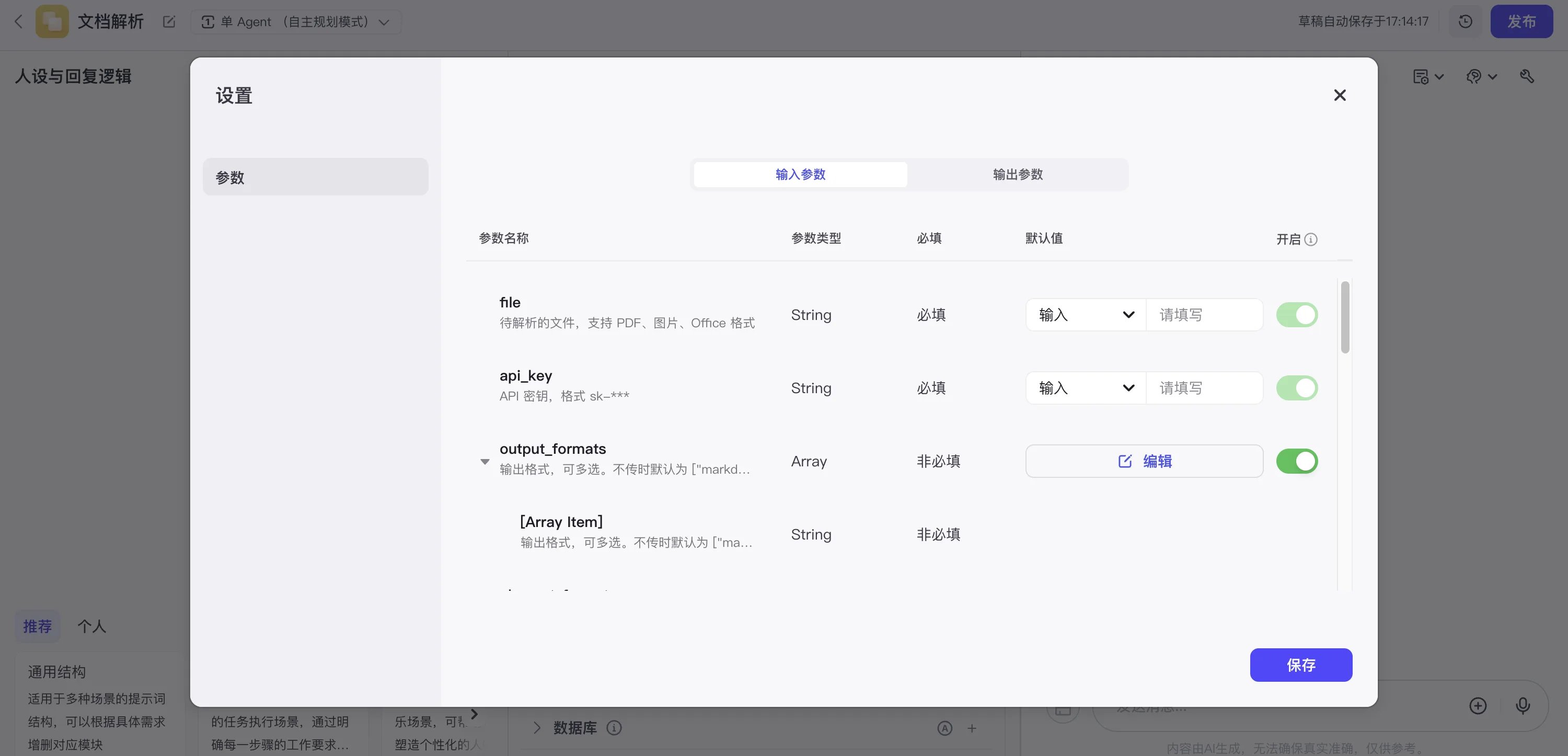
feature_config to control options such as enable_text_cross_page, enable_table_cross_page, enable_
title_level_recognition, enable_inline_image, enable_table_image, enable_image_understanding, and keep_header_footer. If you are unsure how to configure
these options, start with the defaults and tune them one by one based on your workflow results. See Plugin Parameters below for detailed configuration descriptions.5
Save and test
Click Save. Your agent can now use SoMark document parsing. Upload a file in the chat to see the “Calling somark” indicator. The parsed result will be returned once
processing is complete. 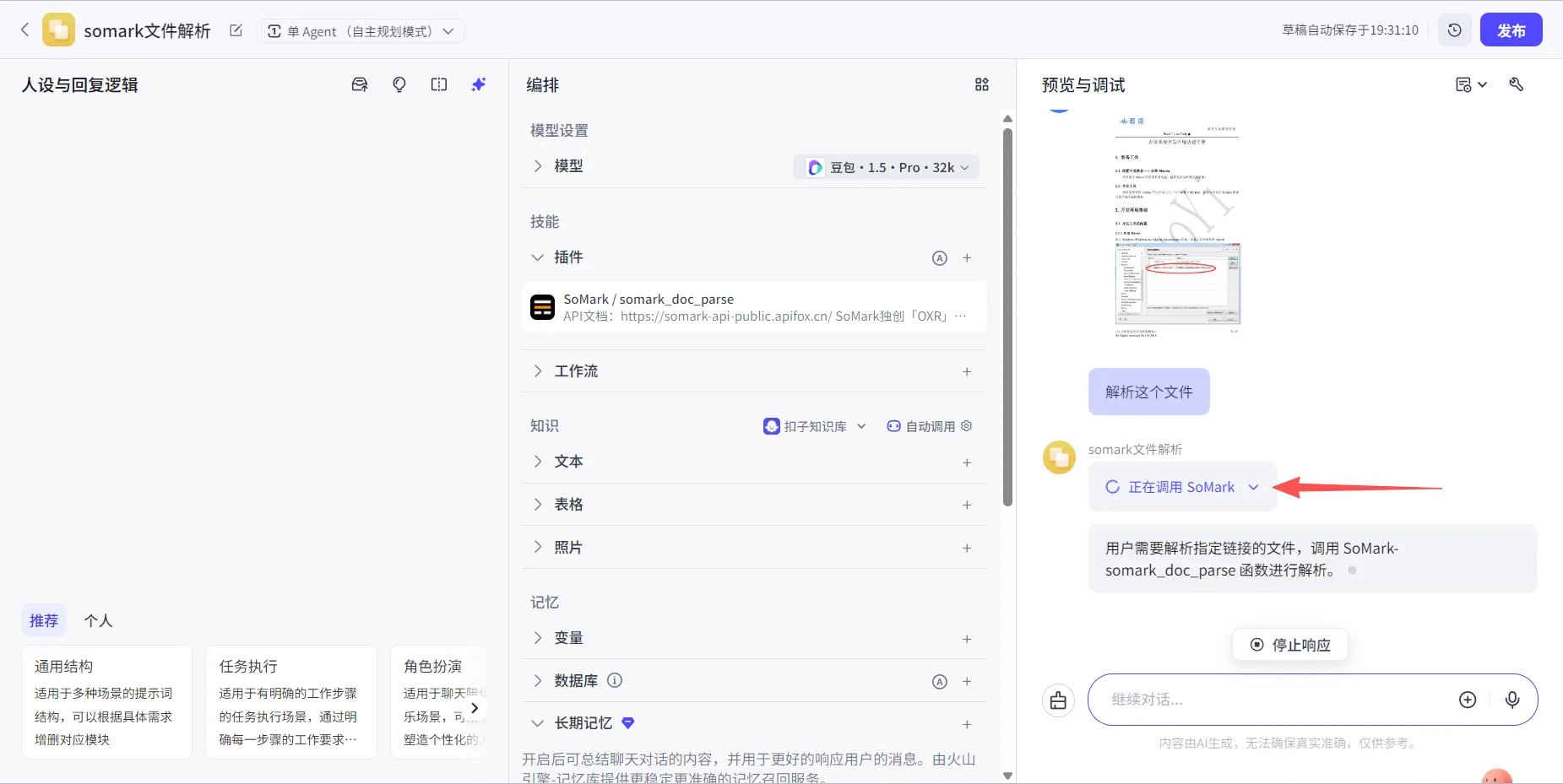
Plugin Parameters
element_formats
element_formats
feature_config
feature_config