
Configuration flow
1
Confirm the Base URL
Confirm the SoMark API Base URL based on your deployment type.
2
Add the SoMark model provider
In RAGFlow, open user settings, go to the model provider settings page, select 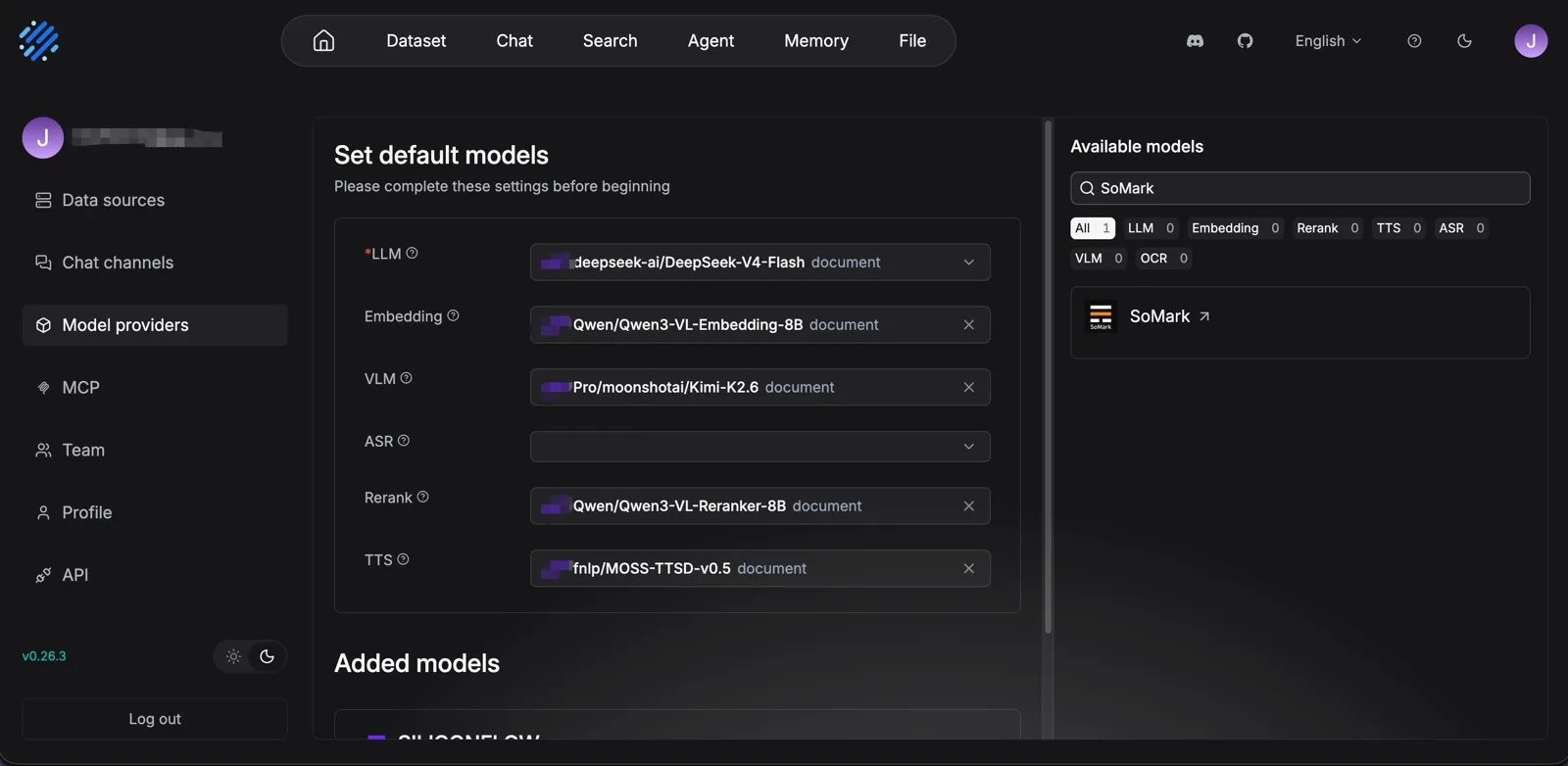
SoMark from the model provider list, and add a SoMark OCR model instance.3
Fill in model settings
Fill in the following settings: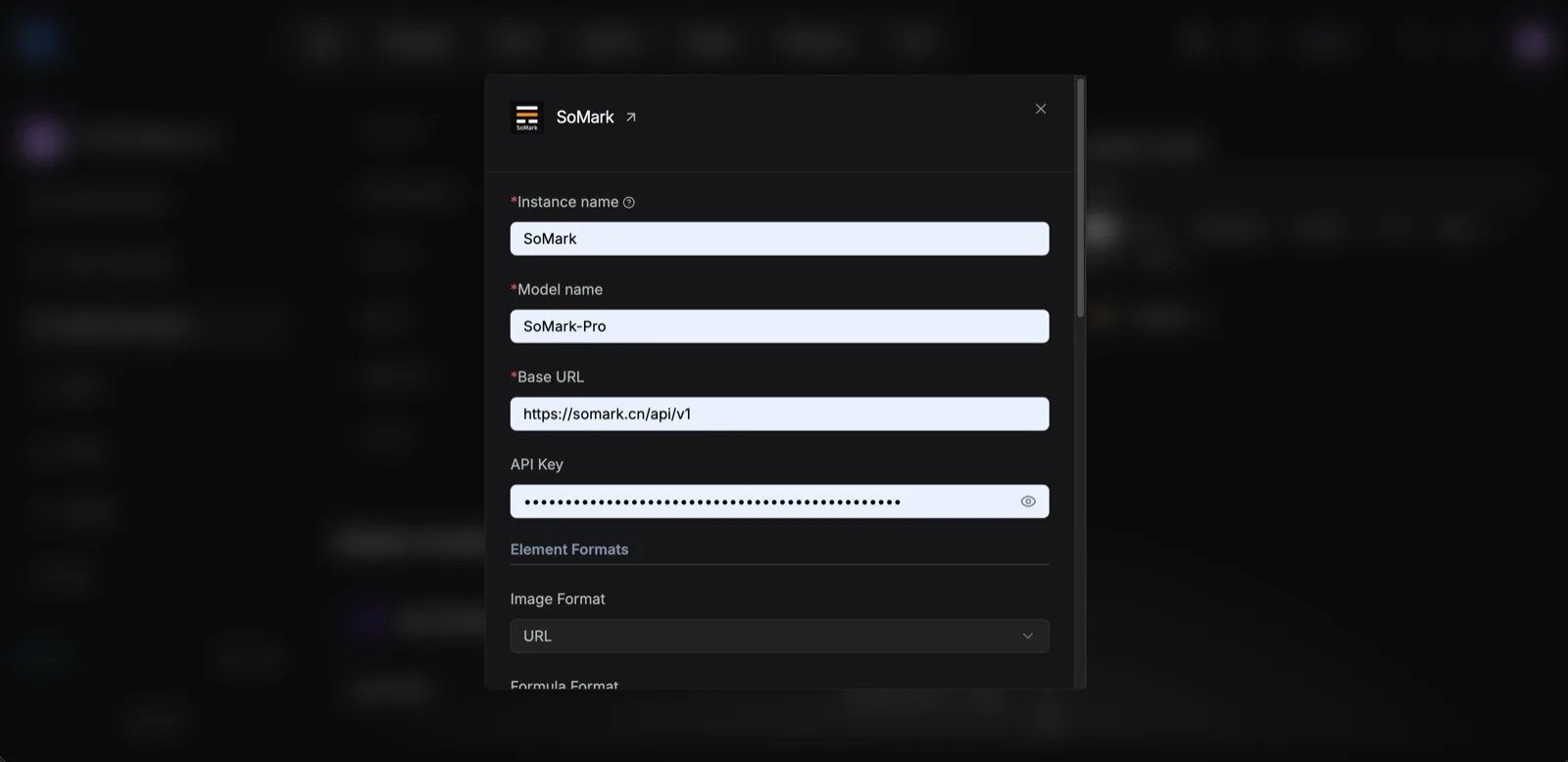
4
Configure element output formats
Configure the return formats for images, formulas, tables, and chemical structures as needed.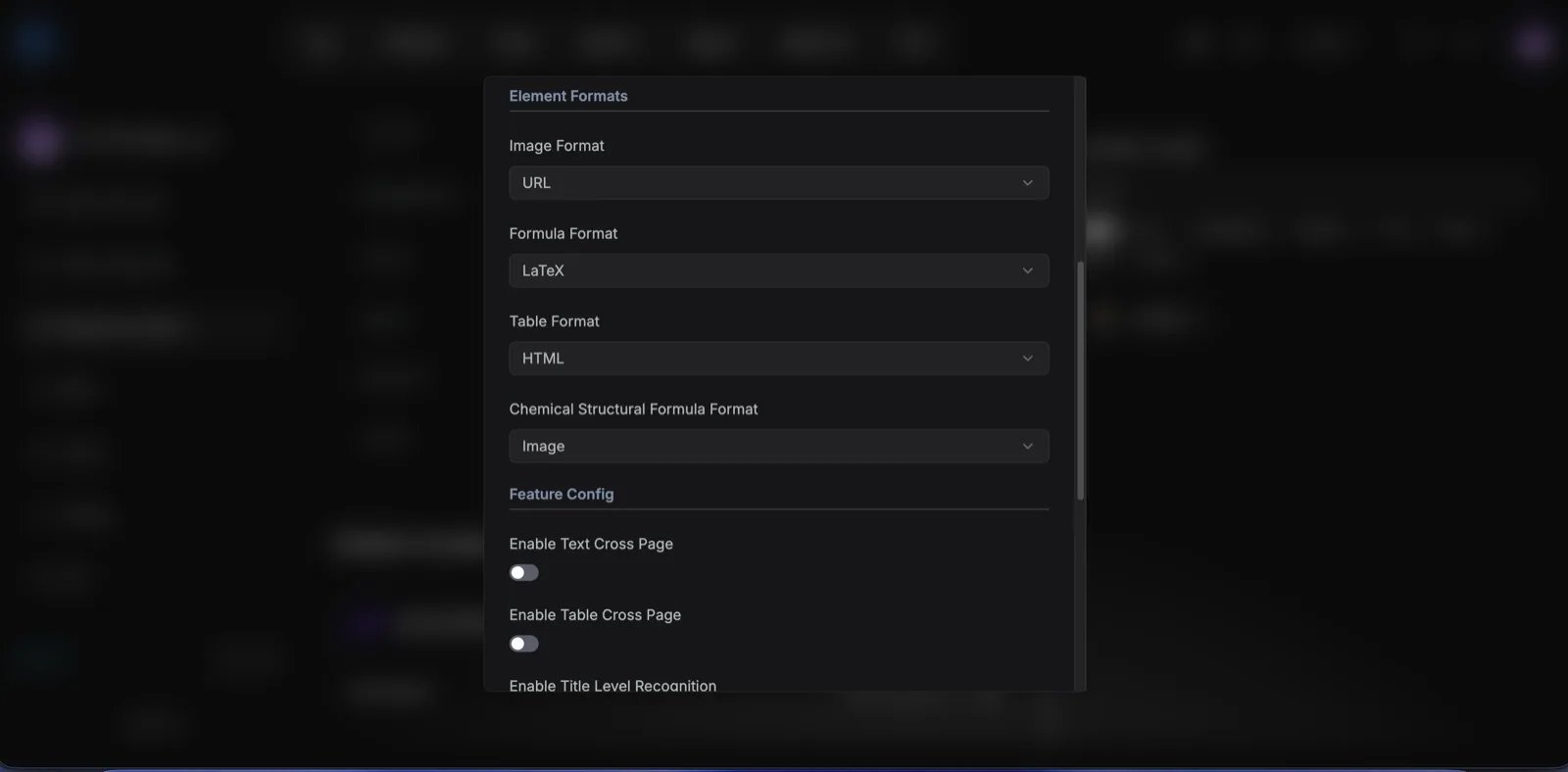
5
Configure parsing capability switches
Enable or disable parsing capabilities as needed.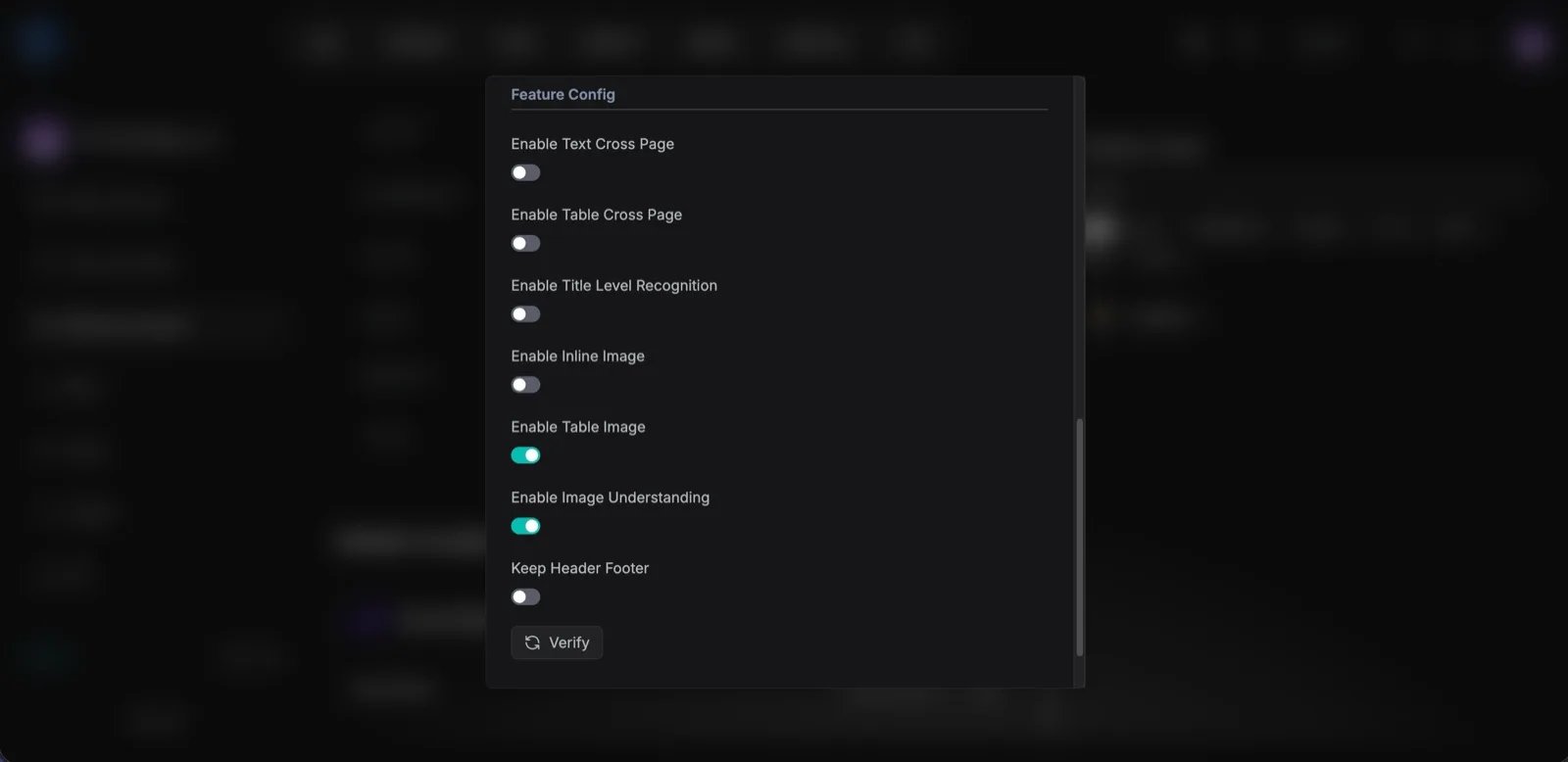
6
Select SoMark in the knowledge base
Open the RAGFlow knowledge base where you want to import the PDF, upload the PDF file, open parsing settings, and set the PDF parsing method to 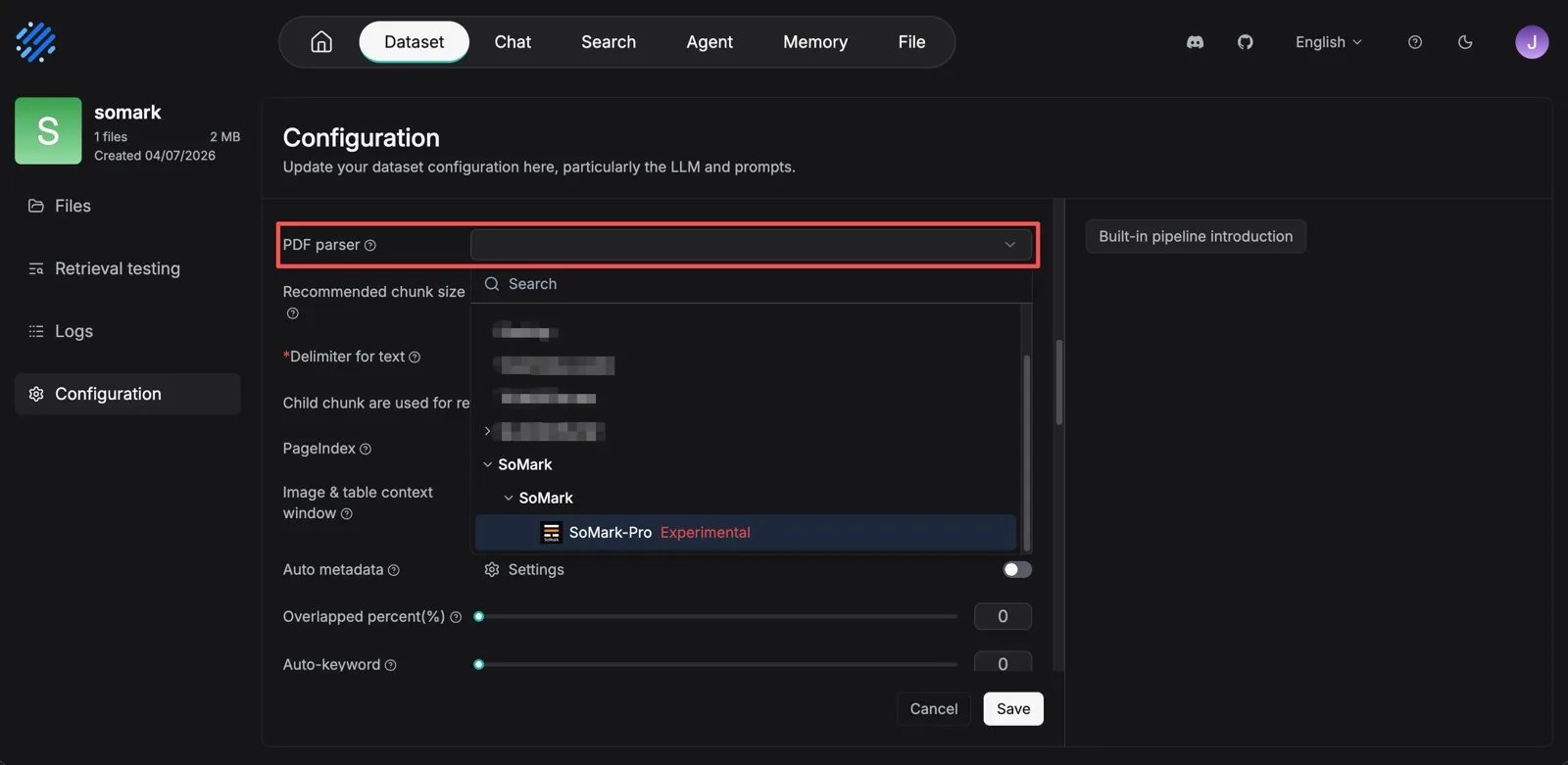
SoMark.7
Start parsing
Start the parsing task and wait for RAGFlow to complete the downstream ingestion flow. RAGFlow submits the PDF file to SoMark, polls the async parsing task, retrieves the structured JSON result, converts SoMark blocks to RAGFlow internal structures, and continues chunking, indexing, and vectorization.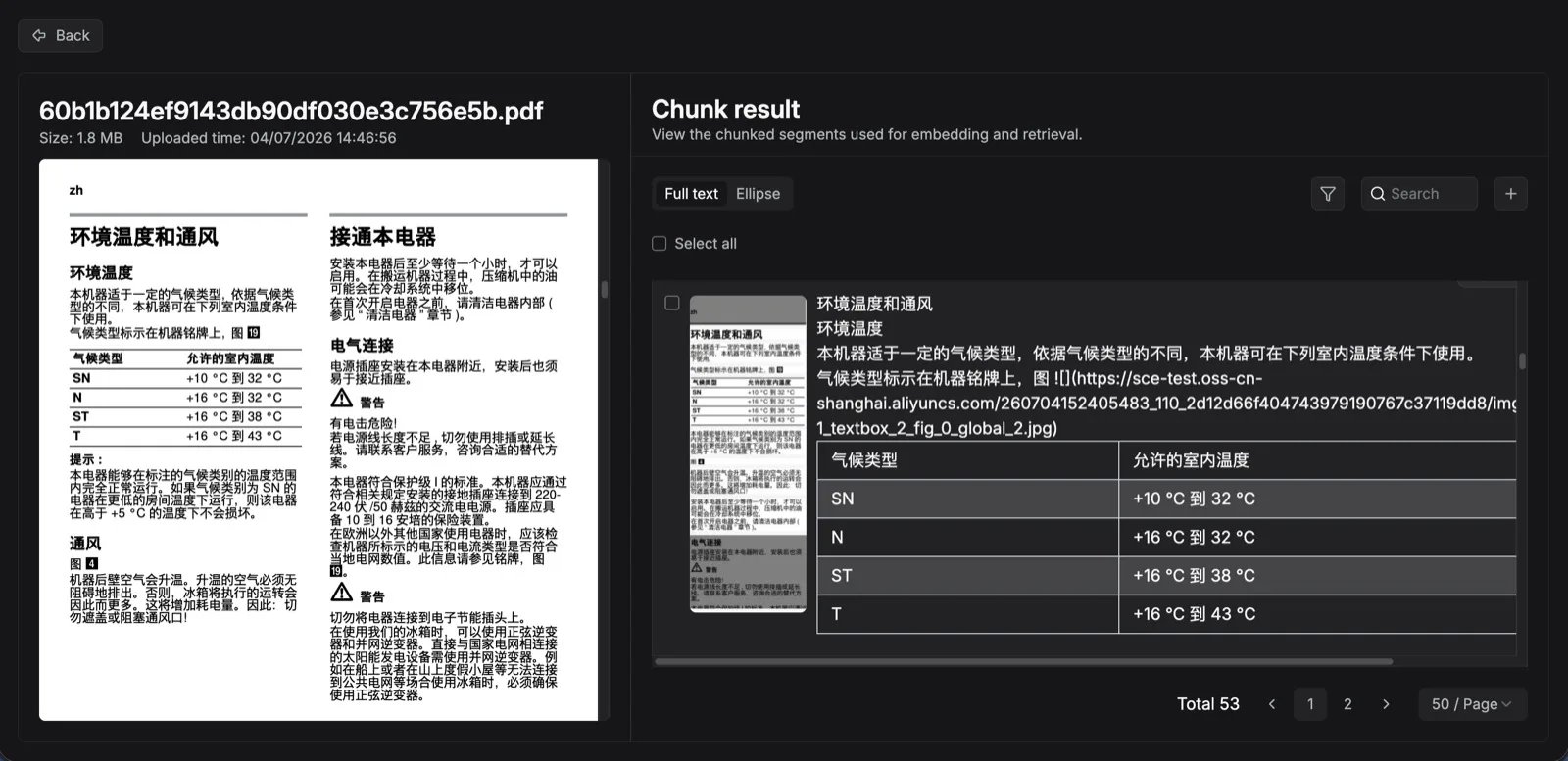
Parsing result mapping
Structured blocks returned by SoMark are mapped to RAGFlow internal layout types.Notes
- SoMark is currently mainly used for PDF parsing in RAGFlow.
- After document parsing succeeds, RAGFlow continues its existing knowledge base chunking, indexing, and vectorization flow.
- If a knowledge base uses SoMark for parsing, you still need to configure an embedding model normally. Otherwise, the downstream ingestion flow cannot complete.